JSON VCF XLS XML to CSV Converter for Windows 10 - Full description
JSON VCF XLS XML to CSV Converter is a Windows utility for moving structured data from JSON, vCard and XML files into CSV format. It is intended for people who need to bring contact details or other exported records into spreadsheet workflows, particularly when several source files need to be handled together. CSV output can be opened in spreadsheet software such as Excel or imported into other applications that accept delimited text.
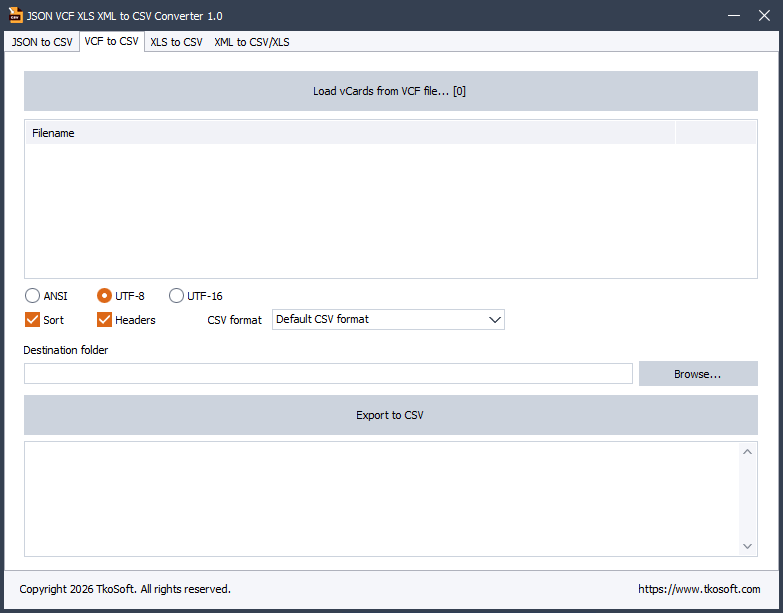
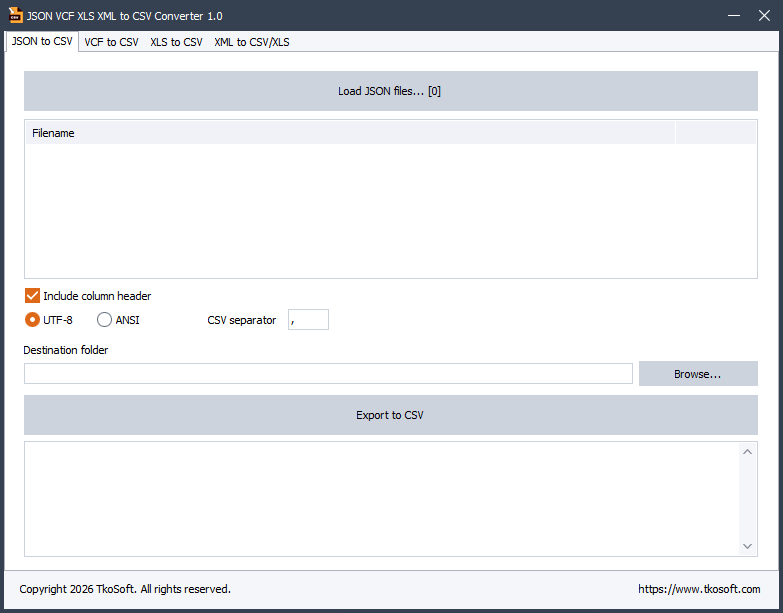
The converter processes multiple input files in a batch, reducing the need to open and convert each file separately. Users select source files through the standard file-navigation interface, choose an output destination and set the conversion options before running the job. The program does not provide drag-and-drop file loading, so source selection is done through its browser rather than by dropping files into the window.
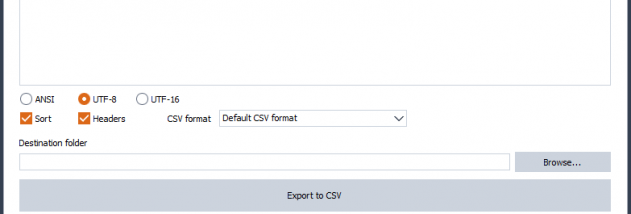
Output settings let users choose separators for columns and rows, include column headers and set the character encoding. These options help match the resulting CSV to the expectations of a spreadsheet or another program. For example, a different delimiter can make fields appear in separate columns when a CSV is opened, while encoding choices can help preserve text across applications that interpret character sets differently. Headers can be included when field names are useful for identifying the resulting columns.
The workflow suits tasks such as consolidating contact data from vCard files, preparing JSON records for spreadsheet review, or converting XML-based data for use in systems that accept CSV. Batch handling is useful for migrations involving several exports, while the configurable output helps adapt the files to a target application's import process. The conversion is focused on format transfer; the program's stated features center on selecting files and defining how CSV output is structured.
JSON VCF XLS XML to CSV Converter is freeware for Windows 10 and Windows 11, with support for 32-bit and 64-bit systems. Its interface uses file selection and conversion settings rather than a drag-and-drop workflow. After conversion, the resulting CSV files can be opened in a spreadsheet or passed to another tool that supports delimited data. Users preparing an import should check that the chosen separators, headers and encoding align with the requirements of the destination application.