AutoSplitter for Windows 10 - Full description
AutoSplitter is a photo-scanning utility for people who need to turn several prints captured in one scan into separate image files. It can work with existing scanned JPG images or acquire images directly from a connected scanner. By detecting individual photos within a larger scan, it reduces the need to crop each picture by hand, while manual split controls provide an alternative when automatic detection does not find the boundaries correctly.
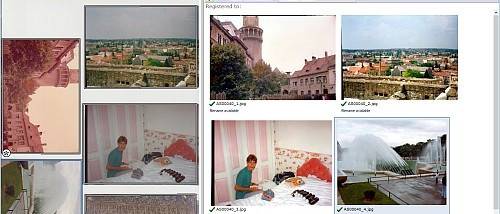
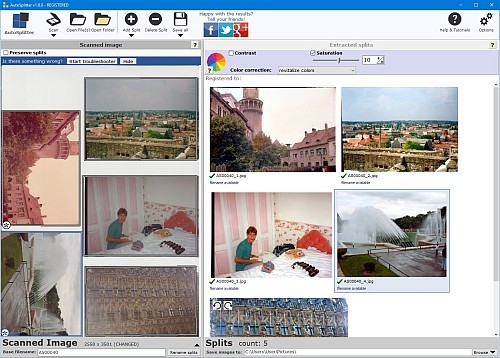
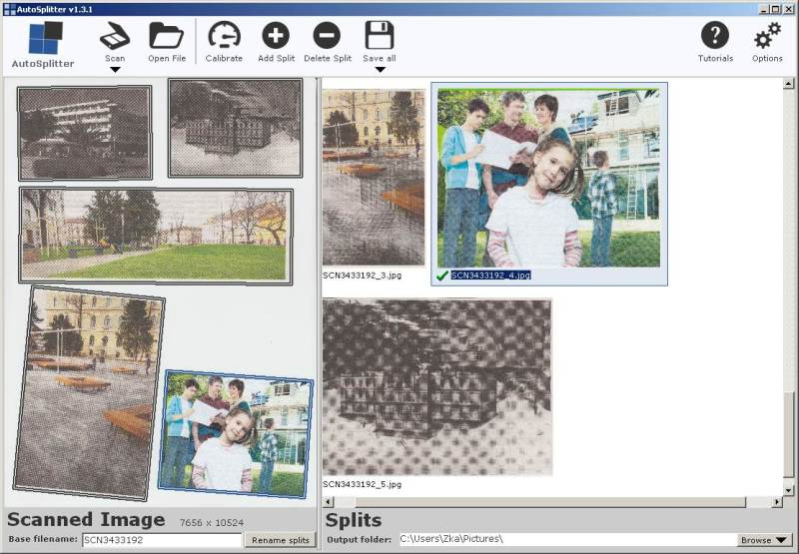
To scan from the application, users select a connected device and choose a resolution from 300 to 1200 DPI. Existing images are brought in through the Open File button; drag and drop is not supported. The workspace uses two panels to show the source scan and the resulting images, making it possible to compare the original with the detected output. When the program recognizes separate items, it displays them individually. If detection fails, it presents guidance for correcting the problem, and users can add split boundaries manually.
Before saving, users can choose an output folder and rename the resulting JPG files. Calibration controls allow adjustments to the background color, corner, angle and background threshold, which can help refine how the software distinguishes a photo from the surrounding area. Entropy mapping is also available as a processing option. JPG output quality can be set on a scale from 20 to 100, allowing users to choose between smaller files and retaining more image detail. These settings support different source scans and output needs without requiring a separate image editor for basic splitting adjustments.
AutoSplitter is suited to digitizing batches of prints, organizing family photographs, or preparing multiple scanned pictures as separate files for storage and sharing. Its combination of scanner input, automated detection and manual correction accommodates scans where photo placement or backgrounds make boundaries less obvious. The two-panel layout keeps the source and extracted results visible during the process, while folder selection and renaming help organize a batch at export. File loading is button-based, so the workflow does not include dropping images directly into the window.
The program is a demo utility for Windows 10 and Windows 11, with support for both 32-bit and 64-bit Windows 10 systems. Scanning requires a connected, supported device; alternatively, users can open JPG scans already saved on the computer. Resolution, calibration and output-quality settings are available within the application, while its central task remains splitting multiple photos from a scan into individual JPG files.